Especially when using a budget-friendly Android device. If you are in Pakistan, you can leverage Gemini to navigate local challenges and make your daily life more efficient.
Here is a guide to getting started with Gemini.
Setting Up a Budget Android Device
You don’t need a high-end flagship phone to use Gemini. As long as your device runs a relatively recent version of Android (generally Android 10 or higher), you can access it.
Download/Enable: Download the Google Gemini app from the Google Play Store. If your phone has the Google Assistant app, you may see a prompt to switch to Gemini.
Accessibility: Once installed, you can trigger Gemini by saying “Hey Google” (if configured) or by long-pressing the power button/corner swipe, depending on your phone’s settings.
Performance Tip: Budget phones may have limited RAM. If the app feels slow, use the Gemini web interface via Chrome instead. It is just as powerful and consumes less system memory.
Daily Routine Use-Cases in Pakistan
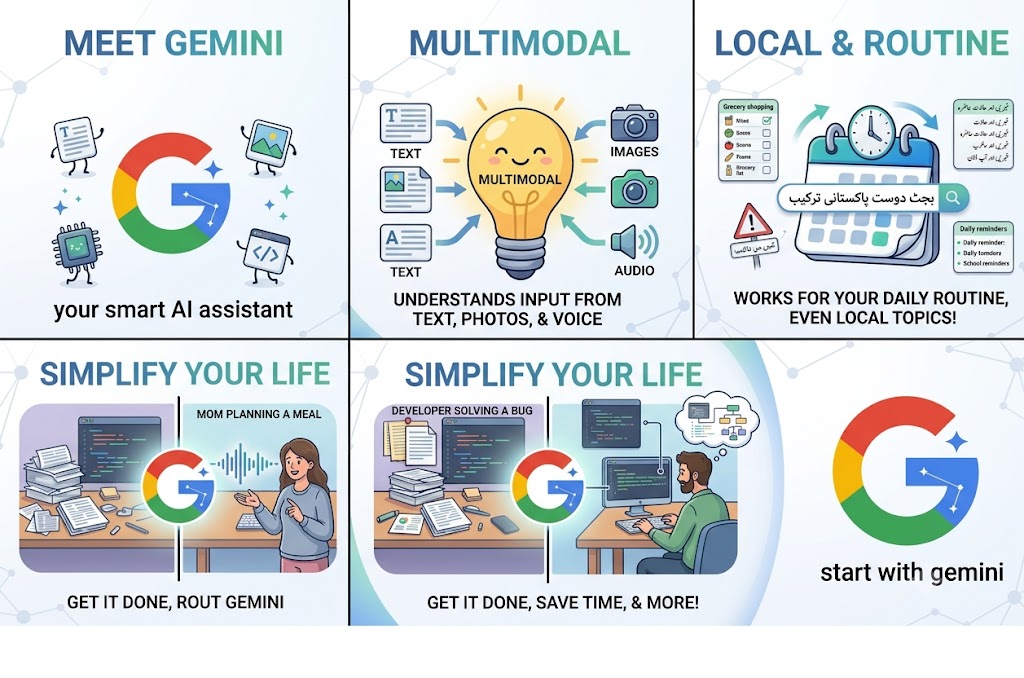
Meal Planning and Grocery Shopping (Budget-Friendly)
Instead of aimlessly wandering through the market, use Gemini to manage your household budget:
Hey Google: ” At home, I have potatoes, onions, tomatoes, and 500 rupees. Give me a quick, healthful lunch dish that I can cook with just these and basic cupboard items.”
Budgeting: Ask it to help you create a weekly grocery list based on current local price trends to help you avoid overspending.
Language Learning and Translation
If you are learning English or need help with formal documents:
Hey Google: ” Could you please proofread this email for grammar errors and make it sound more formal?” or “Translate this English paragraph into conversational Urdu.”
Practice: You can use Gemini to practice English conversation. Type “Become my English tutor and have a detailed discussion about my day or what I should do in my leisure time.”

Smart Travel and Commuting
Navigating through heavy traffic and public transport in cities like Islamabad, Lahore, or Karachi can be full of stress:
Hey Google: “What is the best way to get from F-17 to Blue Area during peak hours using public transport?”
Planning: Gemini can help you plan your day’s errands to minimize fuel consumption or fare costs by grouping nearby locations.
Education and Skill Building
Whether you are a student or want to find a side gig:
Hey Google: “Explain the concept of [Subject] like I am a beginner.”
Skill Growth: Ask, “What are some free online resources to learn digital marketing or graphic design that are accessible in Pakistan?”
Tips for Success on Low-Spec Hardware smartphones
Be Specific: Instead of broad questions, provide context. “How do I cook?” is less effective than “How do I cook chicken biryani for 4 people with limited spices?”
Iterative Refinement: If the first answer isn’t what you need, don’t restart. Ask follow-up questions like “That is too pricey, could you suggest a less expensive option?” or “Make that shorter.”
Voice Input: Since typing on budget screens can be frustrating, use the microphone icon to speak your requests. It’s faster and highly accurate for both English and Urdu.
Clear Cache: Occasionally, clear the cache of your browser or the Gemini app to keep your device running smoothly.
Important Considerations
Data Usage: Gemini requires an active internet connection. If you are on a limited mobile data plan, keep your requests text-based rather than uploading large images or asking for long-form video summaries, as those consume more data.
Verification: AI can sometimes make mistakes. Always double-check facts, especially regarding current local prices, news, or specific government procedures.
Gemini is designed to be accessible across a wide range of devices, not just your Android phone. Because it is a cloud-based service, you can access it anywhere you have a web browser, and it is increasingly integrated into other hardware.
1. Smartphones (Android & iOS)
Android: Most Android devices running a relatively recent version of Android (typically Android 10 or higher) can run Gemini. You can download the dedicated Gemini app from the Google Play Store or access it via the Google app. On many newer devices, Gemini can replace Google Assistant as your primary digital assistant.
iPhone/iPad (iOS): You can use Gemini on iPhones and iPads running iOS 15 or later. You can download the Gemini app directly from the Apple App Store to chat, use voice prompts, or try Gemini Live.
2. Web Browsers (Universal Access)
This is the most “budget-friendly” and hardware-agnostic way to use Gemini. As long as you have a web browser (Chrome, Firefox, Safari, Edge) on any computer, laptop, or tablet, you can access the full capabilities of Gemini by visiting gemini.google.com.
- Note: This does not require a powerful device, making it ideal for older laptops or low-spec computers.
3. Integrated Google Ecosystem
Google is actively embedding Gemini into its wider hardware and software ecosystem:
Google Chrome: Gemini is being integrated into Chrome to help with browsing, summarizing web pages, and organizing research directly within the browser.
Google Home & Nest Devices: Many Google smart home speakers, displays, and security devices (like the latest Nest cameras and doorbells) are being updated to work with Gemini, allowing for more natural voice commands and smarter home security monitoring.
Wearables & More: Google is continuing to roll out “Gemini Intelligence” to other platforms, including smartwatches, cars (via Android Auto), and even XR (extended reality) headsets, so expect support to expand to these devices throughout the year.
Summary Table for Beginners
| Device Type | How to Access |
| Android Phone | Gemini App / Google App |
| iPhone / iPad | Gemini App (via App Store) |
| Laptop / PC | gemini.google.com |
| Smart Home Devices | Google Home App (select devices) |
Pro Tip: If your budget Android phone is running low on space or memory, avoid installing the extra app and simply create a shortcut to gemini.google.com on your phone’s home screen. It will function just like an app but won’t consume your phone’s internal storage.
Leave a thought 🤔 (0)
Be the first viewer to leave a thought!